
PowerShell Desired State Configuration
- In PowerShell Scripts
- How to the work (Which cmdlet has to be used)
- In PowerShell DSC
- What has be done to complete this work
- PowerShell DSC can be installed on the older versions of Windows (8,8.1, 2012) by installing Windows Management Framework 5.1.
- In Windows 10, Windows Server 2016+ DSC is already enabled.
$PSVersionTable.PSVersion
- For Lab-Setup, Create a windows server 2016 core edition in AWS or Azure with t2.micro or B1s in Azure


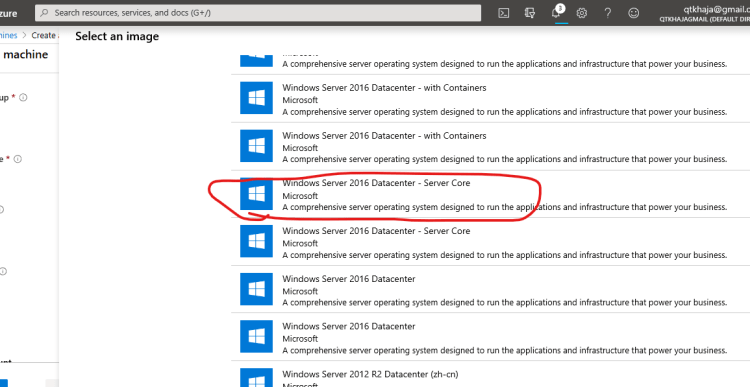
PowerShell DSC Setup on Local Dev Machine
- Ensure PSDesiredStateConfiguration Module is installed on the Machine
Get-Command -Module PSDesiredStateConfiguration
- Enable PowerShell Remoting on Windows
Enable-PSRemoting -SkipNetworkProfileCheck -Force -Verbose
- Lets try to login in the same machine

PowerShell DSC Workflow for beginners
- Create Configuration (Creating a PowerShell file with Specific Syntax)
- Use Resources in Configuration to tell what has to be done
- Execute Configuration to Create MOF file
- Start the DSC Configuration by using MOF File as input
PowerShell DSC Visual Studio Code Setup
- Install PowerShell Extension into VSCode.
Terms
- Configuration:
- Will define on which nodes the configuration has to be execute
- It will also define what has to be done
- Resource:
- Smallest unit of PowerShell DSC which can perform actions
- Node:
- Is the machine where the configuration has to be applied
- LCM (Local Configuration Manger):
- Which is responsible for executing mof files.
Executing Sample PowerShell DSC
- Create a new directory
mkdir helloworld
- In this directory create a new ps1 file
New-Item helloworld.ps1
notepad helloworld.ps1
- Write DSC Configuration in this file
Configuration MyDscConfiguration {

    Import-DscResource -ModuleName PSDesiredStateConfiguration

    Node "localhost" {
        File myfile
        {
            Ensure = "Present" # Ensure the directory is Present on the target node.
            Type = "Directory" # The default is File.
            DestinationPath = "C:\Testing"
        }

    }
}
MyDscConfiguration
- Execute PS1 to create mof file
.\helloworld.ps1
ls
- Now Execute DSC Configuration
Start-DscConfiguration -Path .\MyDscConfiguration -Wait -Verbose
Lets try to understand Configuration

Built-in DSC Resources
Exercise-1: Write PowerShell DSC Resource to Ensure Print Spooler Service is running
- We have got the Service Dsc Resource
- Now lets write the configuration
Configuration PrintSpoolerConfiguration {

    Import-DscResource -ModuleName PSDesiredStateConfiguration

    Node 'localhost' {
        Service Spooler {
            Name = 'Print Spooler'
            State = 'Running'
        }
    }
}

PrintSpoolerConfiguration
- Now Execute this on localhost
Exercise-2: Install IIS Server on Windows Server
- Follow the steps above to create a new ps1 file in a folder and write the configuration as shown below
Configuration WebServerConfiguration {

    Import-DscResource -ModuleName PSDesiredStateConfiguration

    Node 'localhost' {

        WindowsFeature 'iisinstall'{
            Name = 'web-server'
            Ensure = 'present'
        }
    }
}

WebServerConfiguration
- Execute as mentioned above
Powershell Gallery
- Along with built in resources, there are lot of Community DSC Modules which give DSC Resources. Refer Here
- Sample Module Installations
Install-Module -Name cChoco
Exercise
- Write a DSC Configuration to
- Ensure a file is present in C:\temp\test.txt with content ‘Iam learning PowershellDSC’
- Ensure a directory is present in c:\temp\dsc
- copy c:\temp\dsc to c:\temp\dsccopy
- Ensure Hyper-V is enabled as a windows feature (Windows 10 Professional)
- Ensure Print Spooler is Running


