
Terraform State
- Terraform storess the state information and configuration of the infrastructure created in a terraform state file. The default location is in a file called as terraform.tfstate

- When we apply terraform from multiple workstation, it ends up creating multiple infrastructures

- Now to solve this if we try to store the terraform state in common location, then it will not result multiple unnecssary infrastructures created

- This is done by terraform backends Refer Here

- When we have multiple systems with one common state location i.e. backend then we need an approach to lock the state
- Terraform backend should be a common location and should support locking
- Now lets try to use aws s3 backend Refer Here
- AWS S3 backend doesnot support locking, for locking you need to rely on one more service called as Dynamo db.
- Now create an s3 bucket
- For locking create a dynamodb table

- Now execute the terraform init after making changes to add terraform backend Refer Here for the changeset

- Now lets apply , whenever we apply terraform tries to acquire the lock from the backend in this case from dynamo db and stores the state in the specified s3 bucket
- Lets consider the below scenario

- Now DevOps engineer on laptop1 needs to create dev environment
- Devops Engineer on laptop2 needs to create test environment
- How can we use one template to create various environments?
- Terraform supports workspaces for this
- Terraform supports workspaces by a special commandline
terraform workspace

- In terraform there is always a workspace called as default
- Now lets make necessary changes Refer Here
- execute terraform init

- Lets create a new workspace called as Developer

- Lets create one more workspace called as QA
- Now make small changes to reflect the workspace Refer Here
- Now lets select developer workspace

- Now lets apply to create resources


- Now lets select QA workspace and apply the resources


- If you one template and you need to create multiple environments using a combination of backend + workspace is ideal.
- Break till 8:00
Realizing archtitecture in Azure
- Lets try to create a similar architecture in Azure
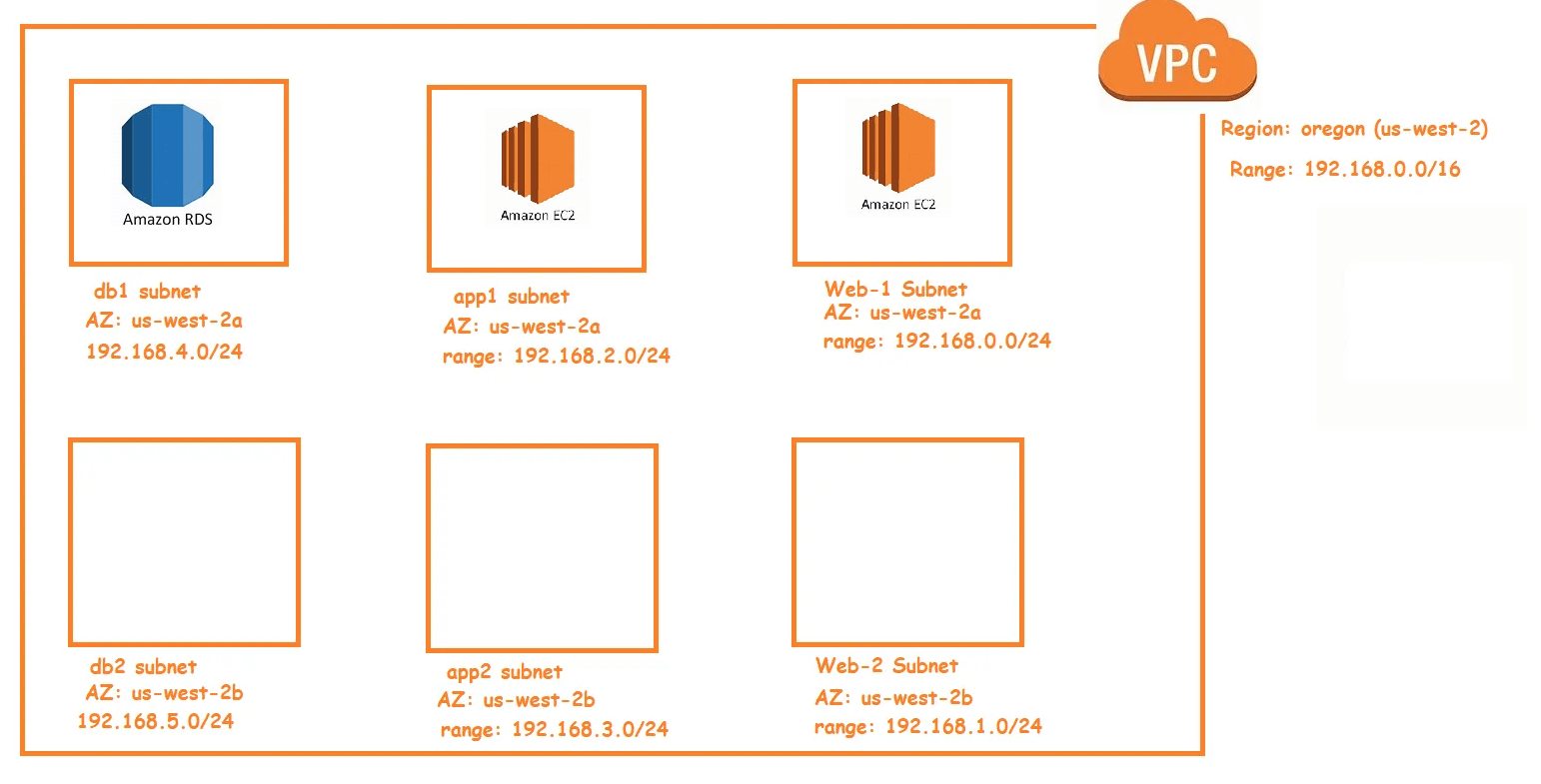
- To create an infra in azure we need use terraform azure provider Refer Here
- Install azure cli Refer Here
- Now execute az login and enter your credentials
- now execute terraform init

- make a note of manual steps
- create a resource group
- create a virtual network
- create a network security group
- create a storage account
- create a nic
- create virtual machine

- Resource group Refer Here
- Refer Here for the changeset
- Now lets try to apply

- Lets add features Refer Here and reapply
- Lets correct region Refer Here


- Now lets add a virtual network Refer Here

- for subnet Refer Here
- Refer Here for the changeset


- Now lets try to create a network security group for web which opens all the ssh, http connection Refer Here
- Refer Here for the changeset and apply


- Now lets create a public ip address Refer Here
- After public ip address we need to create the network interface card where you specify subnet, public ip and nsg Refer Here
- Refer Here for the changeset

- Now we need to create a storage account for storing diagnostics information Refer Here
- Now we need to create vm Refer Here
- Refer Here for the changeset

- For using terraform with Azure Refer Here
- For using azurerm backend Refer Here
- In the terraform vm we can use provisioning to login and install/deploy
- For using terraform with GCP Refer Here


