
External libraries/Packages
- In addition to standard libraries, we have lots of external packages Refer Here
- To deal with multiple packages with different version it is recommeded to use virtual enviroment for every project
- To manage packages (dependencies) python has
pip
Activity: Im working on datascience project
- This project requires pandas and numpy
- Lets see how to create virtual environment for this
- Create a folder
- Now create virualenvironment
- Windows
python -m venv .venv - Mac/Linux
python3 -m venv .venv
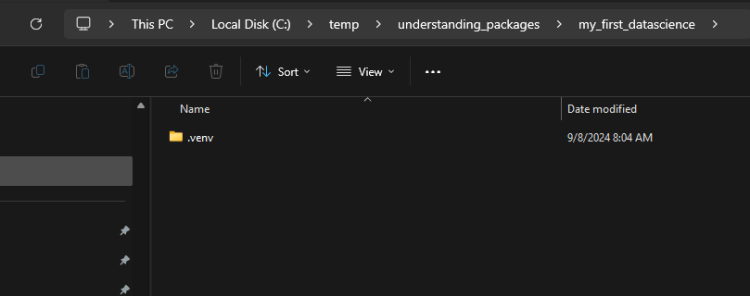
- Windows
- Now activate virtual environment
- Windows
.venv/scripts/activate - linux or mac
source .venv/bin/activate
- Windows
- Now lets see what are the local packages in this environment
- Windows
pip freeze - linux or mac
pip3 freeze
- Windows
- Now lets install numpy
- Windows
pip install numpy - linux or mac
pip3 install numpy
- Windows
- Install pandas in same way package name pandas
- Now execute pip freeze
- Now redirect the output of pip freeze to requirements.txt
pip freeze > requirements.txt
- In version control systems we will not be commiting .venv rather we commit requirements.txt
- to install packages mentioned in requirements.txt
- ensure virtual environment is activated
- now execute
pip install -r requirements.txt
- In the class we have discussed about setting up projects to interact with aws and azure
Testing Python code
- Developers are expected to write unit tests
- unit generally refers to the code that is being developed.
- To do this in python we have two popular ways
- unittest library
- pytest (external library) Refer Here
- Refer Here for hello unit test in pytest
Step 1: Set up the Project Directory
Start by creating the main project directory, which will hold your source code, tests, and configuration files.
my_project/
├── src/
│   └── my_package/
│       ├── __init__.py
│       ├── module1.py
│       └── module2.py
├── tests/
│   ├── __init__.py
│   ├── test_module1.py
│   └── test_module2.py
├── .coveragerc
├── requirements.txt
└── pytest.ini
Step 2: Organize Source Code (src/)
- Inside the
my_project/directory, create asrc/folder. This will contain the source code for your application. - Create a Python package inside
src/(in this case,my_package/) that contains modules (module1.py,module2.py, etc.). - Ensure that each package and module has an
__init__.pyfile so that Python treats them as packages.
my_project/
├── src/
│   └── my_package/
│       ├── __init__.py
│       ├── module1.py
│       └── module2.py
Step 3: Organize Tests (tests/)
- In the
my_project/directory, create atests/folder to contain all your test files. - Each test file should start with
test_to ensure thatpytestdiscovers them. For example, if you havemodule1.py, you should createtest_module1.pyto test it. - You can organize test files corresponding to the source files in the same structure. Use descriptive names for test files and functions to maintain clarity.
my_project/
├── tests/
│   ├── __init__.py
│   ├── test_module1.py
│   └── test_module2.py
Step 4: Set Up Pytest Configuration (pytest.ini)
- Create a
pytest.inifile in the root directory to configure pytest. - In
pytest.ini, you can specify paths and other pytest options.
Example pytest.ini:
[pytest]
addopts = --cov=src/my_package --cov-report=term-missing
testpaths = tests
This configuration:
– Enables coverage reporting (--cov=src/my_package specifies that coverage should be measured for the src/my_package/ folder).
– Shows missing lines in the terminal report (--cov-report=term-missing).
– Specifies that tests are located in the tests/ directory (testpaths = tests).
Step 5: Add Coverage Configuration (.coveragerc)
- Create a
.coveragercfile in the root directory to configure how coverage data is collected and reported. - This file allows you to exclude files or directories from coverage and configure output formats.
Example .coveragerc:
[run]
source = src/my_package
branch = True

[report]
exclude_lines =
    if __name__ == '__main__':
This configuration ensures:
– Code coverage is collected for files in src/my_package.
– Branch coverage is measured (coverage of both true/false branches of conditionals).
– The line if __name__ == '__main__': is excluded from coverage reporting.
Step 6: Add Dependencies (requirements.txt)
Add pytest, pytest-cov, and any other dependencies to a requirements.txt file for easy installation.
Example requirements.txt:
pytest
pytest-cov
Step 7: Write Source Code and Tests
Now, you can write your source code and corresponding tests. Here’s a basic example:
module1.py (Source Code):
def add(a, b):
    return a + b

def subtract(a, b):
    return a - b
test_module1.py (Test Code):
from src.my_package.module1 import add, subtract

def test_add():
    assert add(2, 3) == 5

def test_subtract():
    assert subtract(5, 3) == 2
Step 8: Running Tests with Coverage
To run the tests and see the coverage report, you can use the following command:
pytest
This will:
– Run all tests in the tests/ folder.
– Generate a code coverage report based on the pytest-cov configuration.
Step 9: Review Coverage Report
The report will be displayed in the terminal. If you want to generate an HTML report, you can add the following option:
pytest --cov=src/my_package --cov-report=html
This will generate an htmlcov/ folder containing the coverage report that can be viewed in a browser.
Conclusion
This folder structure and setup allow you to:
– Keep source code and tests neatly organized.
– Easily run tests and measure code coverage using pytest and pytest-cov.
- Refer Here for the sample code
Exception handling in python
- Refer Here
- Built in Exceptions Refer Here
- Custom Exceptions Refer Here
- Refer Here for changes for raising and expecting errors in unit tests


