Docker Internals
- Questions to understand
- How are container isolations created?
- Network
- Process tree
- FileSystem
- How are cpu and memory resources allocated to this isolation
- How are container isolations created?
- For more content on containers
- Refer Here for the list of the blog items
- Refer Here for docker internals
- In linux we have a kernel feature called as Namespaces that can be used to create isolations.
- To apply resource limits to this isolation we have one more kernel feature which is called cgroups (Control groups)
Lets try to run some java application inside container
- Manual Steps:
- Creating a ubuntu vm
- installing java
- downloading the application(jar file)
- running the command to start the applciation
- Access the application by using http url
- Commands
sudo apt update
sudo apt install openjdk-11-jdk -y
wget https://referenceapplicationskhaja.s3.us-west-2.amazonaws.com/spring-petclinic-2.4.2.jar
java -jar spring-petclinic-2.4.2.jar
-
Now access the application from http usign
http://<public-ip>:8080 -
Lets see if we can do the same in containers
-
Now access the machine where docker is installed.
-
Option 1:
- Try to search for a docker container with ubuntu image
docker container run --name exp1 -p 8000:8080 -it ubuntu /bin/bash apt update apt install openjdk-11-jdk wget -y wget https://referenceapplicationskhaja.s3.us-west-2.amazonaws.com/spring-petclinic-2.4.2.jar java -jar spring-petclinic-2.4.2.jar- When we the run the above commands the application runs inside the contaiener are we are able to access the application using
http://<host-ip>:8000
-
Option 2:
- Searching for openjdk image has resulted in openjdk:11
docker container run --name exp2 -p 8001:8080 -it openjdk:11 /bin/bash curl https://referenceapplicationskhaja.s3.us-west-2.amazonaws.com/spring-petclinic-2.4.2.jar --output spring-petclinic.jar java -jar spring-petclinic.jar- When we the run the above commands the application runs inside the contaiener are we are able to access the application using
http://<host-ip>:8001
-
Observations: When we want to run our application inside the container
- manually executing commands as shown above is not a sensible idea
- When we are creating images choosing a base container with necessary softwares installed (option 2) will be sensible.
-
In Docker if you want to create images we create
Dockerfile, which has instructions on how to build the container image and command to be executed when container is execute -
Create a file in a new folder called as
Dockerfileand add the below contents
FROM openjdk:11
ADD https://referenceapplicationskhaja.s3.us-west-2.amazonaws.com/spring-petclinic-2.4.2.jar /spring-petclinic.jar
EXPOSE 8080
CMD ["java", "-jar", "/spring-petclinic.jar"]
- Now lets try to build the image using
docker image build -t spc .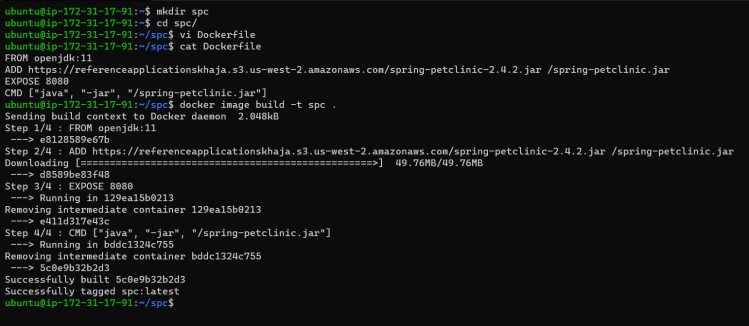
- Now create the container
docker container run -d --name exp3 -p 8082:8080 spc
docker container run -d --name exp4 -p 8083:8080 spc