
Containers Continued
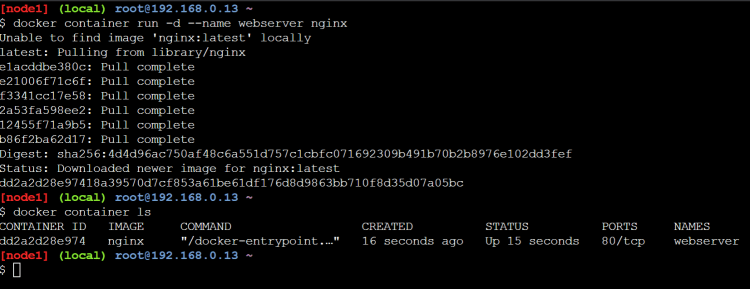
- Lets create a new nginx container
- Inspecting containers
- Command:
docker container inspect <container-name/id> - Containers have lot of associated data that characterizes its behavior, To get the information we can use inspect command
- The response from inspect is a json object with full of details
- Command:
- We have started the container in detached mode, now lets try to attach to the container
docker container attach <container-name/id
- Once we attach to the container and use Ctrl+c then the container will be stopped.
- To quit from the attached mode without stopping container (Ctrl+ pq)
- When the application in a container writes the logs to stdout and stderr, we can view those logs from logs command
docker container logs <container-name>
- If you want to get only last few entries
docker container logs --tail 5 <container-name>
- If you want to follow the logs
docker container logs --tail 5 --follow <container-name>
- When we create containers, container run on the internal network which is not accesible from outside world, but we would still want to access the applications running inside containers.
- So while creating containers we can do port forwarding. This port-forwarding forwards the request recieved on the host (machine where docker is installed) on some specific port to the port in the container

- If we want to specify the manual ports to be mapped then
docker container run -p <port on host>:<container port> <image>
docker container run -d -p 32660:80 --name webserver nginx
- There is also an option to dynamically create port forwarding
docker container run -P <image>

- Executing commands in the docker container
docker container exec <container-name> <command>

- Now if you want to login in into docker container terminal for already created container
docker container exec -it <container> <terminal>

- Note: When we try to work in containers in many cases you might not find all the linux utilities inside the container & this is for greater good. The container should not have any additional tools/utilities apart from what are required to run your application.
- If you want to run the contianer (create a new container) in the interactive mode
docker container run -it <image-name> <terminal>
Installing docker
- Lets try to install docker on a Linux Machine
- Create a ubuntu VM in AWS:
- Create a ubuntu VM in Azure
- note:
- AWS EC2 instance: Refer Here
- Azure VM: Refer Here
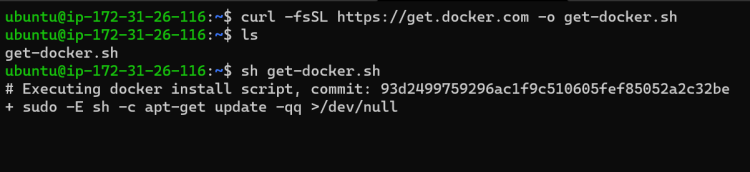
- To install docker on a linux machine
curl -fsSL https://get.docker.com -o get-docker.sh
sh get-docker.sh
- Now to give the access of docker to non root users, we need to add them to docker group
whoami
sudo usermod -aG docker $(whoami)
# Now logout and login into the terminal
docker version
-
Docker can also be installed on Desktops
- Windows 10 Refer Here
- Mac Refer Here
-
Note: Docker Commands
- Docker commands in the earlier versions were docker <command> but docker now recommends using docker <context> <command>


