
Containers
-
We will try to cover the following
- Running the first container
- Starting, Stopping and Removing Containers
- Inspecting Containers
- Exec into running container
- Attaching to a running container
- Retrieving container logs
- Port Forwarding
-
To Get used to commandline use
--helpor cheatsheets -
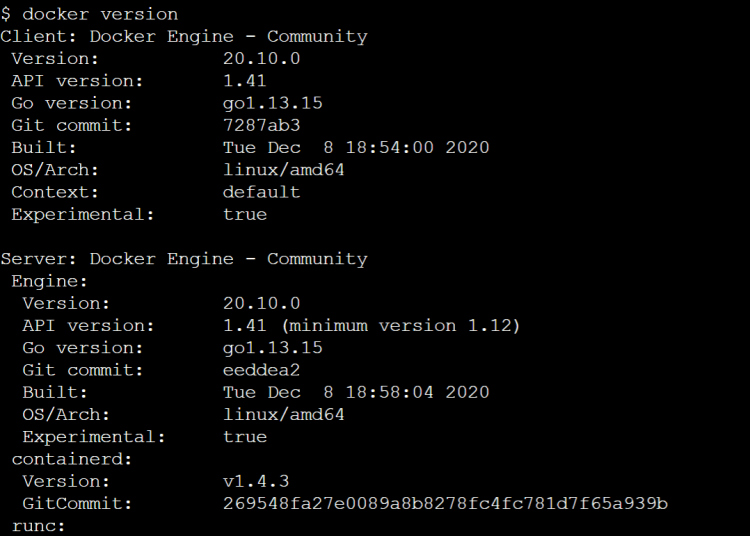
Docker version command if everything works correctly will show the client and the server versions installed
-
Lets try to run a first container
hello-world
docker container run <docker-image>

docker container run hello-world
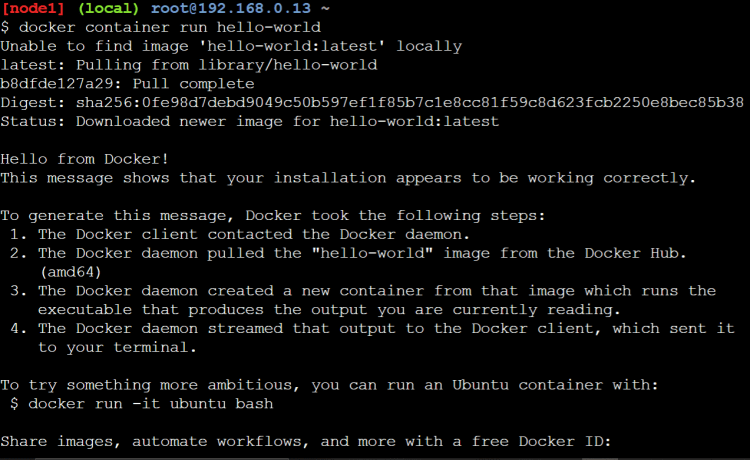
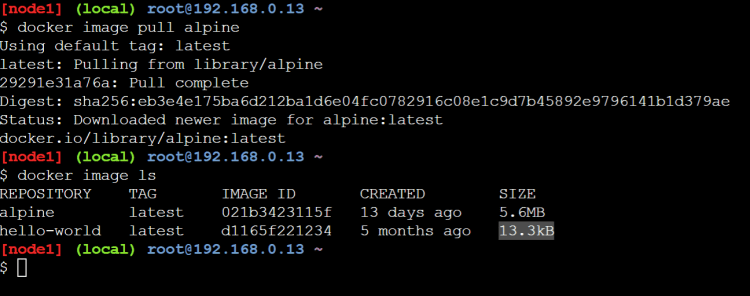
- Lets try to pull the image and view the sizes of the images
docker pull <image>
- Lets try to create a container
docker container run alpine
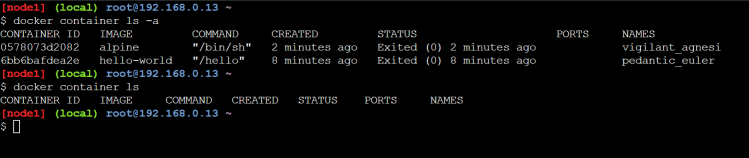
- Now lets look at the containers running on the system
docker container ls
- Now lets look all the container irrespective of their current state
docker container ls -a
- For every container created docker will create
- container id
- container name if not passed
- So lets to create a container from some image with a name
docker container run --name <name> <docker-image>

- Lets disect the command which we are passing
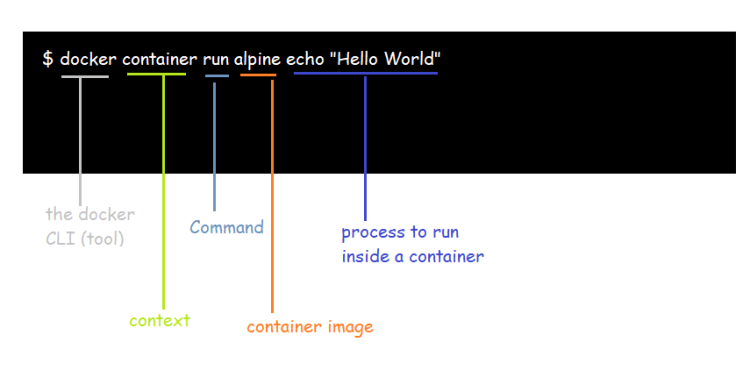
- Three basic linux commands which finish immedietly, after 10 seconds, till user quits (ctrl+c)

- Now lets try to run these commands as process inside the alpine container

- By default when we run docker container, it attaches the standard output to the terminal where we execute commands
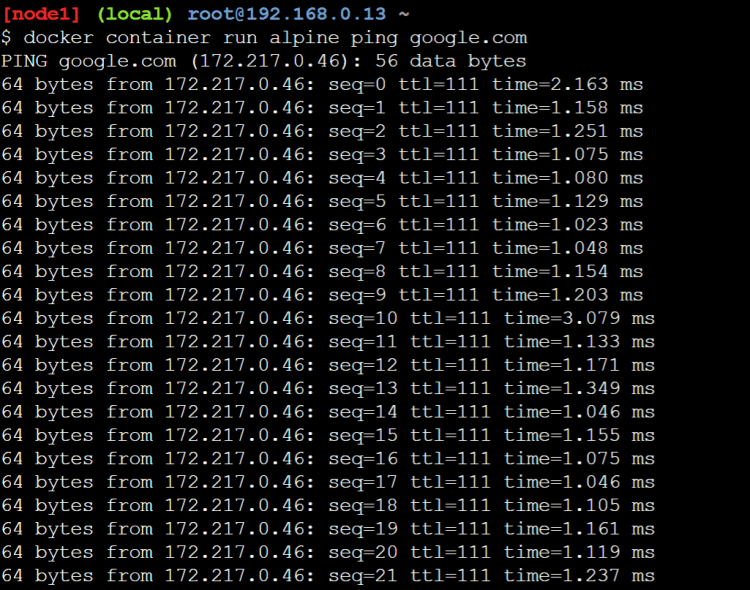
- We can specify the docker to run in background mode(detached mode)
docker container run -d <image-name>
- The containers lifetime depends on how long the command or process that gets started when container is created is running
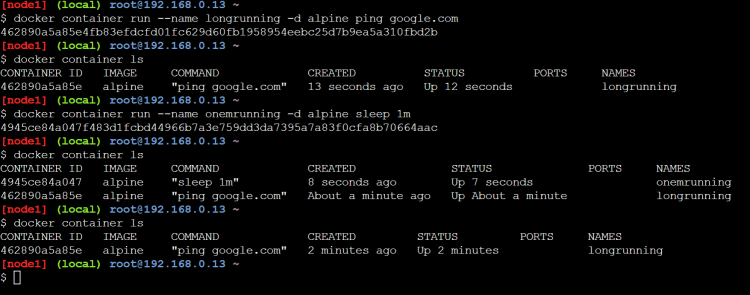
- All of the docker images have some command that gets executed when the container is created & in many cases (httpd, nginx etc) these are good enough as the they start the application and the command execution doesn’t stop as long as application in contianer is running, so as long as app in container is running container will also be in running state.
- How to remove containers
docker container rm <container id or name> # this is for the stopped or exited

docker container rm -f <container id or name> # this works for container in running as well as stopped
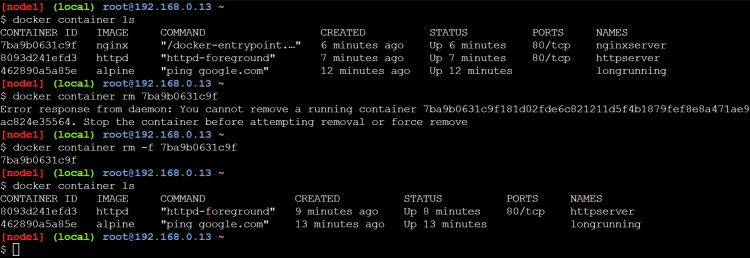
- if you want to remove all the running containers
docker container rm -f $(docker container ls -q)

- IF you want to remove all the containers
docker container rm -f $(docker container ls -a -q)
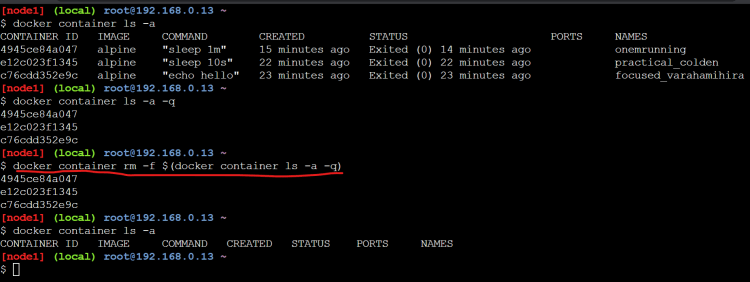
- Now lets create a httpd container

- We can start the container and stop the container
docker container start <container id or name>
docker container stop <container id or name>
 *
*


