

Launch Template
- A launch template is similar to launch configuration, however defining a launch template allows you to have multiple versions of a launch template
- Lets create a launch template


- Now we can use launch template in Auto scaling group as done in the class.


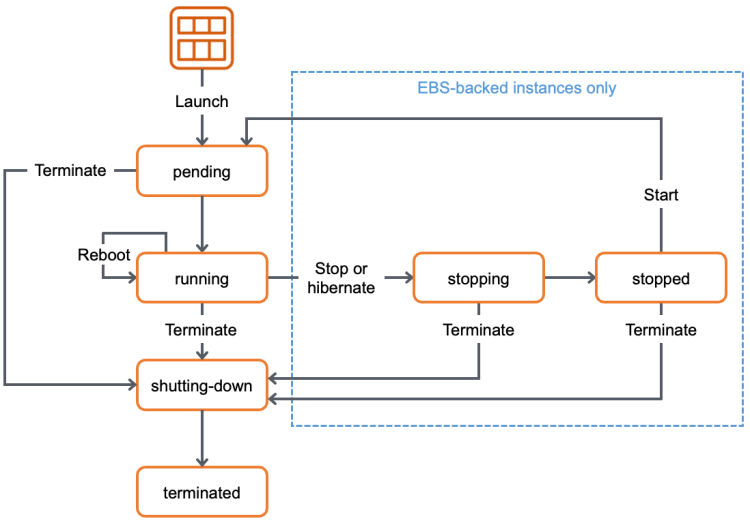
Instance Life Cycle
- Ec2 instance lifecycle
- EC2 Auto Scaling Lifecycle


Scenario: Automation
- All the organizations expect us to create/manage ec2 instances/auto scaling groups automatically (in most of the scenarios)
- So we need to know how to automate creations, deletions and management of AWS EC2 resources.
- All these days, we were using AWS from Console (Web UI), AWS also supports other two options
- Command Line => AWS CLI
- Code => AWS SDK (boto3)
- Lets get started with automation by understanding how to use aws cli for ec2 related activities
AWS CLI
- Learning & Setup:
- Refer Here to install aws cli
- Refer Here to understand json
- Lets use AWS CLI in Linux Env
- Launch AWS Cloud shell


- Launch AWS Cloud shell
- Learning Activity 1: Lets try to explore aws cli commands
- Format:
aws [service] [command] [<arguments>] - Example:
aws s3 ls aws ec2 describe-instances- lets try to get all the ec2 instances

- Refer Here for all the available commands
- In AWS describe or list are used generally for fetching information
- List of all the ec2 instances
aws ec2 describe-instances- List of all the ec2 instances which are running
aws ec2 describe-instances --filter 'Name=instance-state-name, Values=running'
- List of the key pairs
aws ec2 describe-key-pairs --output table- List of all instance types
aws ec2 describe-instance-types- Command to delete a key pair
aws ec2 delete-key-pair --key-name 'cheflearning'- Command to display all the security groups
aws ec2 describe-security-groups - Format:
- Note: If you are aware of JSON, look into JMESPath Refer Here


