

Install Jenkins on ubuntu
Install openjdk8
Execute the following commands in order
sudo apt-get update
sudo apt-cache search openjdk


Note: Select any suitable package from the top. This documentation selects the openjdk-8-jdk
sudo apt-get install openjdk-8-jdk
Prepare your system for Jenkins in ubuntu
Execute the following commands
wget -q -O - https://pkg.jenkins.io/debian/jenkins-ci.org.key | sudo apt-key add -
echo deb https://pkg.jenkins.io/debian-stable binary/ | sudo tee /etc/apt/sources.list.d/jenkins.list
sudo apt-get update
Before executing install of Jenkins lets try to find the possible Jenkins versions available
sudo apt-cache madison jenkins


Installing Jenkins
sudo apt-get install jenkins -y
Jenkins Post-Install Configuration
- Navigate to the url http://<jenkinsserverip>:8080

- Find the contents of /var/jenkins_home/secrets/initialAdminPassword and enter in the Administrator Password Textbox and click on continue

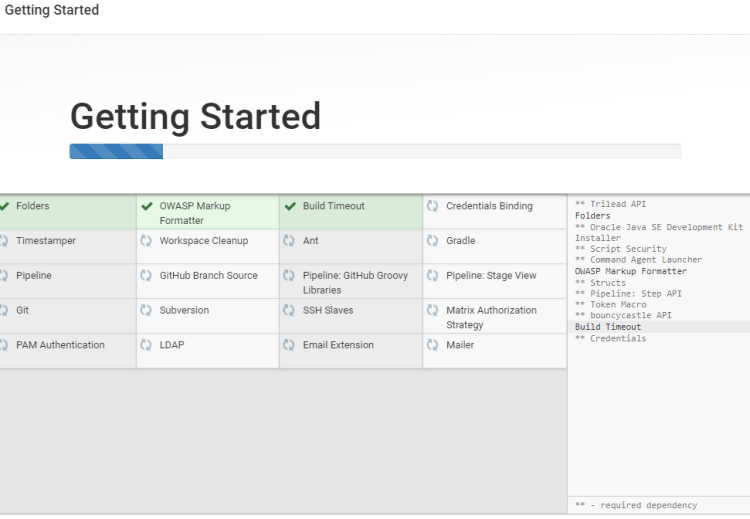
- Now Select the Install Selected plugins in the Customize Jenkins Page

- Wait till all the plugin installations become successful and then you will be navigated to Create First Admin User Page. Enter the details and click on save and continue


- After confirming the instance configuration, You should see the Jenkins is ready page

- Click on Start using Jenkins Page and you will be redirected to Jenkins home page.


Configure Git, Maven and Build Sample Java Project
-
SSH into Jenkins server and Ensure Git, Maven are installed.
-
In this example lets build game of life from here
-
Click on new Item and select Freestyle project

-
Enter the necessary info in the Description in General Tab and Click on Source Code Management Tab

-
Select Git and Enter the Repository URL and click on Build tab

-
Select Invoke top-level Maven targets after clicking on add build step

-
Enter package in Goals section and click on save.

-
Now Select Build Now and you should see the update in Build History section

-
Click on the Build number as highlighted and select console output to see the build logs


- Wait till job is succeded


